Why Scanned PDFs Have Watermarks and Gray Shading
Scanned PDFs present unique watermark challenges because the document is essentially a collection of images. Watermarks in scanned PDFs typically come from three sources:
- Original document watermarks — "DRAFT", "CONFIDENTIAL", "SAMPLE" text or logo overlays baked into the scanned image
- Scanner artifacts — gray background shading caused by aged paper, scanner lid not fully closed, or uneven lighting during scanning
- Printer marks — faint background patterns added by some printers as copy-protection measures (steganographic yellow dots, light-colored grid patterns)
Unlike native PDFs where watermarks are separate vector objects that can simply be deleted, scanned PDF watermarks are pixel-level content that requires image processing to remove.
Method 1: Remove Text Watermarks from Scanned PDFs
Using the Magic Eraser Tool
For text watermarks like "DRAFT" or "CONFIDENTIAL" overlaid on a scanned page:
- Open the scanned PDF in PDF Agile
- Navigate to Edit → Magic Eraser (or the Object Eraser tool)
- Draw a selection rectangle around the watermark text
- PDF Agile analyzes the surrounding pixel content and fills the erased area with a natural-looking background reconstruction
- Preview the result and adjust the selection if needed
- Apply and save
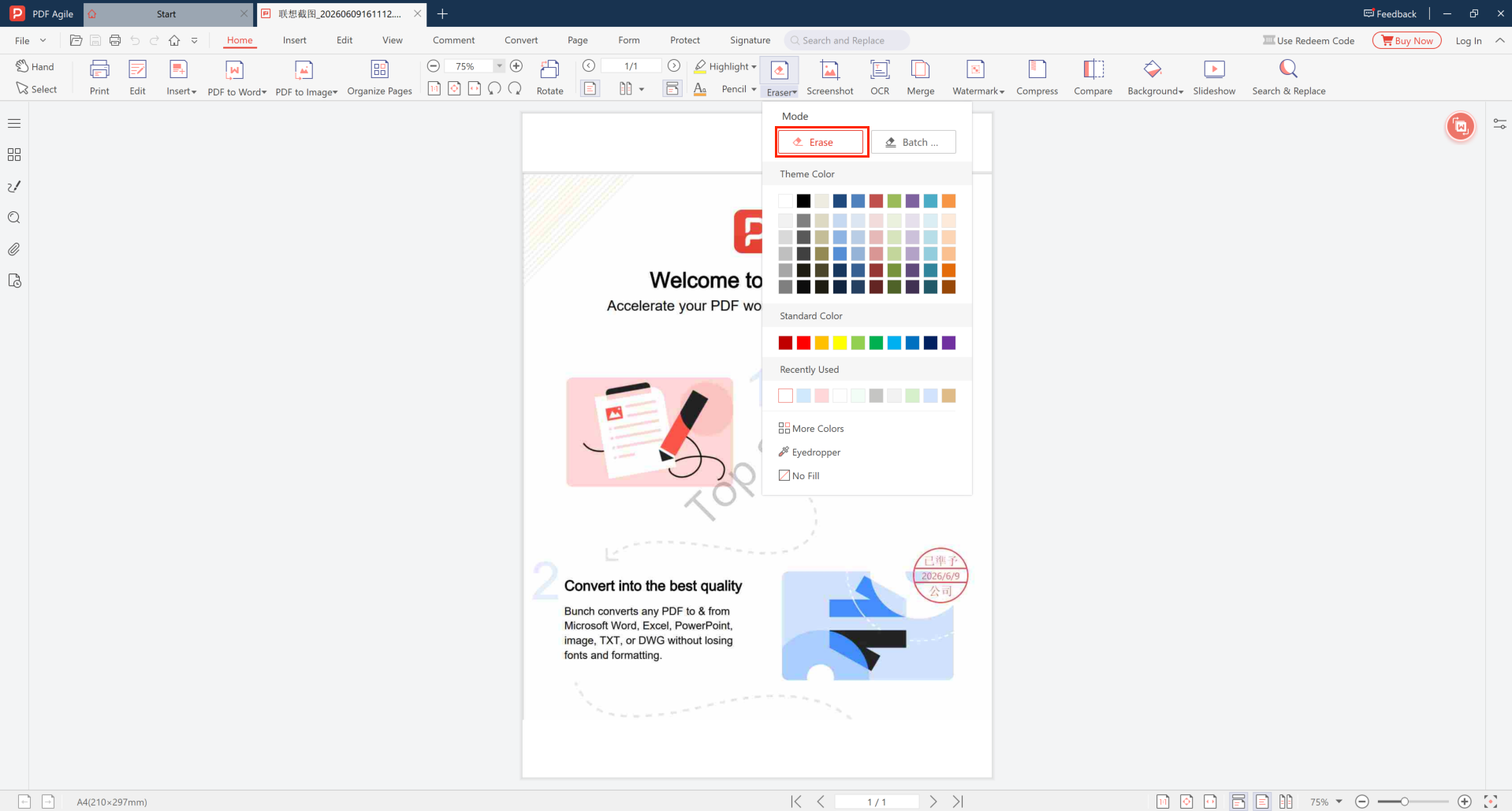
💡 Tip: For diagonal watermarks spanning the full page, make multiple smaller selections rather than one large selection. This gives the fill algorithm more surrounding context to work with, producing cleaner results.
Method 2: Remove Logo or Image Watermarks
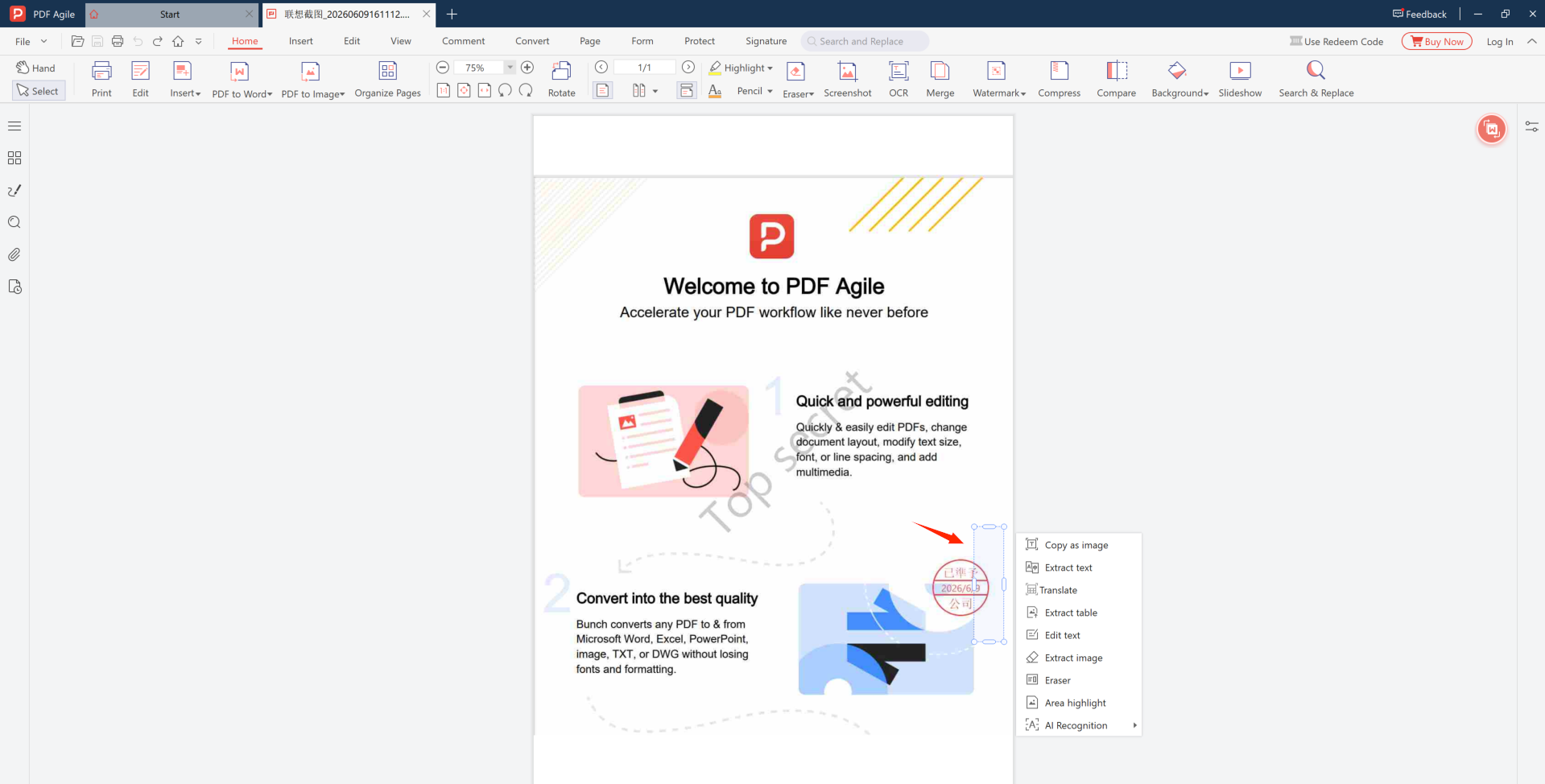
For image-based watermarks (company logo overlays, semi-transparent image stamps), you can select the watermark area and erase it directly:
- Open the scanned PDF in PDF Agile
- Right-click on the watermark region and select Eraser from the context menu
- Draw a selection rectangle around the watermark area you want to remove
- PDF Agile fills the selected area with the surrounding background, seamlessly removing the watermark
- Preview the result and adjust the selection if needed
- Apply and save
Quality Considerations
Watermark removal from scanned PDFs involves image processing trade-offs:
- Resolution matters — higher-resolution scans (300 DPI+) produce better erasure results with less visible artifacts
- Content complexity — watermarks over plain backgrounds erase cleanly; those over dense text or photos may show some artifacts
- Always keep originals — save processed files as new copies, never overwrite the source scan
Remove Watermarks from Your Scanned PDFs Today
100% offline — your documents never leave your device.
⬇ Free Download PDF Agile