Common Objects Found on Scanned PDF Pages
Scanned business documents — contracts, invoices, certificates, customs declarations — often contain unwanted elements from the physical paper:
- Rubber marks — "APPROVED", "RECEIVED", "VOID", company chops in red or blue ink
- Date marks — fax machine headers, received-date marks from office machines
- Dirt and marks — coffee stains, fingerprints, scanner glass marks, paper fold lines showing as dark creases
- Old correction fluid — white-out marks from physical corrections visible in scans
- Marginal annotations — handwritten notes, underlining, or highlighting from previous reviewers
All of these are pixel-level content embedded in the scanned image. PDF Agile's Magic Eraser lets you remove them directly — no image editing skills required.
How to Remove Objects with the Magic Eraser
Open the PDF and enter image edit mode
Open your scanned PDF in PDF Agile. Navigate to the page with the unwanted object. Zoom in to at least 100% for precise selection.
Select the Eraser tool from the Home ribbon
In the Home tab, click the Eraser tool in the annotation tools group. The eraser dropdown lets you choose between Erase mode (single page) and Batch... mode (same area across multiple pages). You can also set the fill color or select "No Fill" to simply clear the selected area.
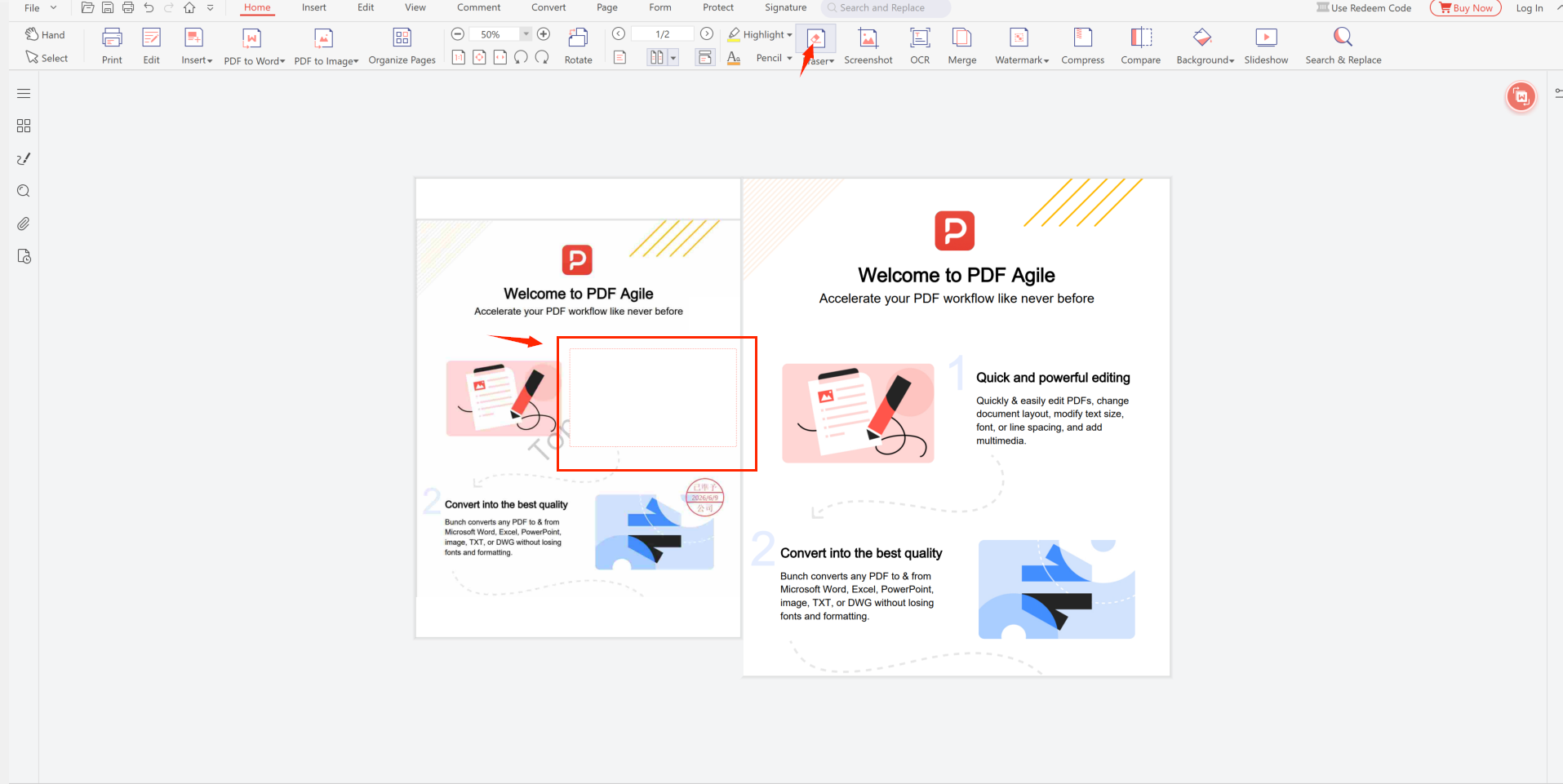
Draw a selection rectangle around the object
Click and drag on the page to draw a rectangle around the unwanted object. Include a small margin of clean background around it for better fill results. The selected area will be highlighted, showing exactly what will be erased.
Apply content-aware fill
Click Apply. PDF Agile's content-aware fill algorithm samples the texture and color from the surrounding clean area and reconstructs the background. For objects on plain white paper, this produces near-perfect results.
Touch up if needed
If the fill shows slight artifacts, use the brush tool to manually paint over remaining traces with the background color (sample from a clean area of the page using the color picker).
Save as new file
Use File → Save As to save the cleaned version. Keep the original file intact.
Removing Dirt and Scanner Artifacts
For scattered dirt marks, coffee stains, and scanner glass contamination on scanned PDF pages:
- Spot cleaning — use the Magic Eraser in small spot mode, clicking directly on each mark
- Despeckle filter — for uniformly scattered small dots (scanner noise), use the Despeckle/Denoise filter under Image → Enhance to remove them automatically
- Threshold adjustment — for light-colored smudges on white backgrounds, increase the white threshold to normalize near-white pixels to pure white
Trade and Archive Use Cases
Foreign Trade: Cleaning Supplier Sample PDFs
Suppliers often send product catalog PDFs with "SAMPLE" or price watermarks and their company chop marked on every page. Use Magic Eraser to clean these before forwarding to your own clients or importing into your product database.
Archive Management: Historical Document Restoration
Archivists dealing with scanned historical documents often need to remove later additions (received marks, processing marks) to restore documents to their original appearance for digital archive presentation.
Try the Magic Eraser on Your PDFs
Free download — 100% offline, no subscription required.
⬇ Free Download PDF Agile